Step-by-step guides for buying and selling on Gpbid.
Buyers:
What do I need before I can buy? · What ways can I buy in a live show? · What's the difference between Bid, Custom, Pre-bid, and Max Bid? · How does Local Pickup work? · Step-by-step: joining a live show / orders & pickup (with screenshots)
Sellers:
How do I apply to become a seller? · What do I need before I can start selling? · What can I sell? · What's prohibited or restricted? · How soon can I host my first live show after applying? · How do I create a live auction show? · How do I create a show and attach products? (video) · How do I add products to a live show? · How do I go live from the App? (video) · How do I set a starting bid? · Can I start at $1? · Can I set a Reserve Price? · What if nobody bids? · Can I auction a passed item again? · Can I sell Buy It Now (fixed price) as well as auctions? · How do buyers find my shows? · How can new sellers get more viewers? · Does the platform promote my shows? · Can I bring followers from other social apps? · What does it cost to sell on GPBid? · What's the platform commission? · Are there payment fees or other charges besides commission? · If an item sells for $100, what do I actually take home? · Who pays for shipping—buyer or seller? · Does the platform provide shipping labels? · Can I combine multiple orders for the same buyer? · How quickly do I need to ship after a sale? · When do I get paid after a sale? · How do I withdraw? · What if a buyer wins but doesn't pay? · Can a buyer cancel after winning? · If a buyer asks for a refund, opens a dispute, or files a chargeback, how are sellers protected? · Step-by-step: signup, create a show, go live, Console (with screenshots)
Buyers
What do I need before I can buy?
Sign in, then make sure you have a shipping/billing address and a payment method on file. If the show is set to Buyer choice, pick Shipping or Local Pickup in the live room first.
What ways can I buy in a live show?
You’ll usually see three formats: Auction, Buy It Now, and Giveaway.
- Buy Now: purchase at a fixed price right away.
- Join / FREE GIVEAWAY: enter a free giveaway drawing.
- If payment doesn’t finish automatically, use Checkout All in the side panel.
What's the difference between Bid, Custom, Pre-bid, and Max Bid?
- Bid $xx: during a live auction, place the next minimum bid in one tap.
- Custom: enter your own amount and tap Place Bid (a live bid while the auction is running). If an item is only Pin’d and not started yet, Custom often becomes Max Bid instead.
- Pre-bid: bid before the auction starts. Your interest stays private to other buyers and may raise the displayed price.
- Max Bid: set a private ceiling; the system auto-bids for you up to that limit. You can Update Max Bid later.
If you have unpaid auction orders, you may be blocked from bidding until you pay.
How does Local Pickup work?
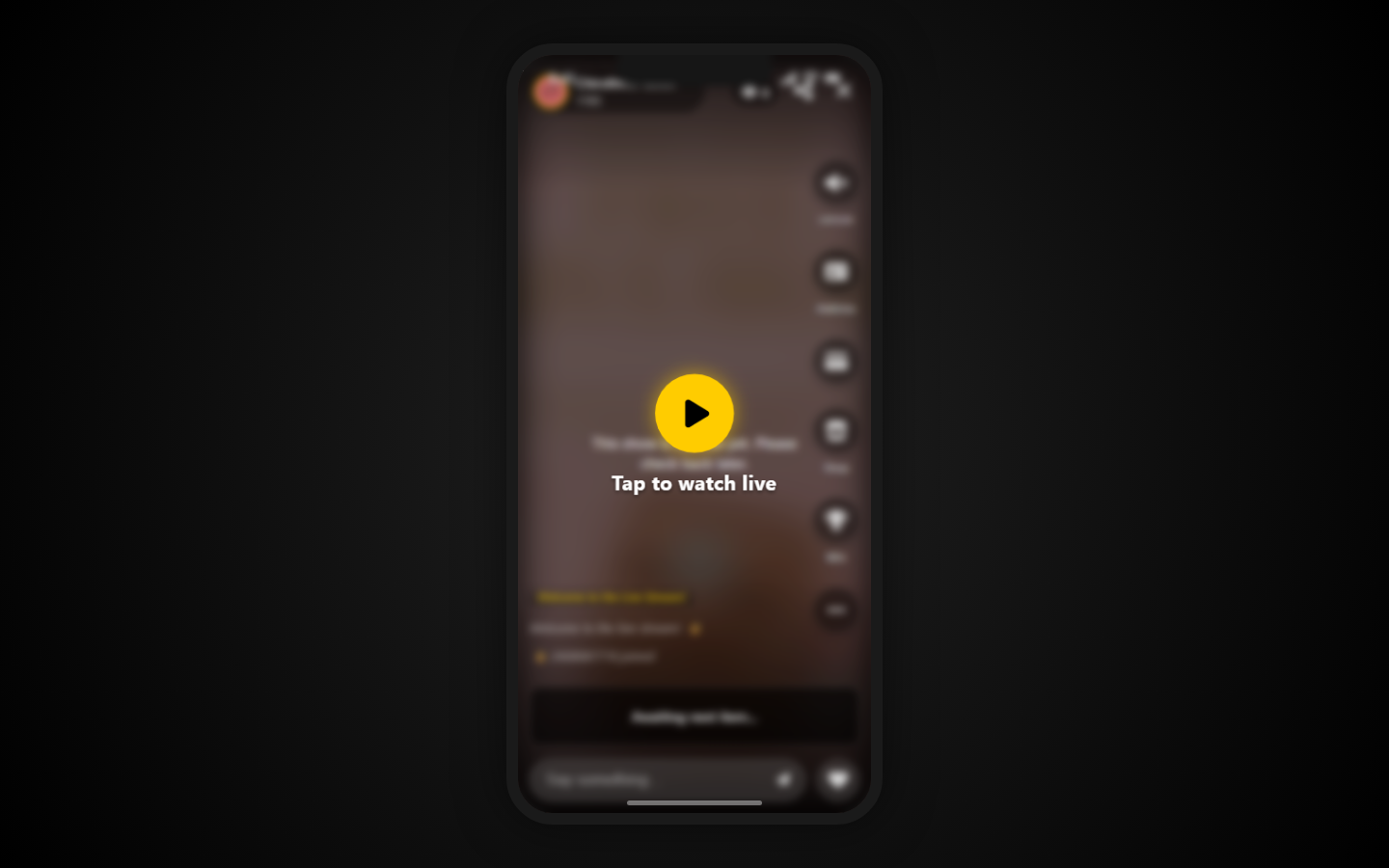
Watch the walkthrough
Buyer: bid live → win → Ready for Pickup → show Order QR Tap play · works best on mobile data / Wi‑Fi- Join a live show in the App and bid / buy (or choose Local Pickup when the show allows it).
- When you win, pay if prompted. You’ll get a You won notification.
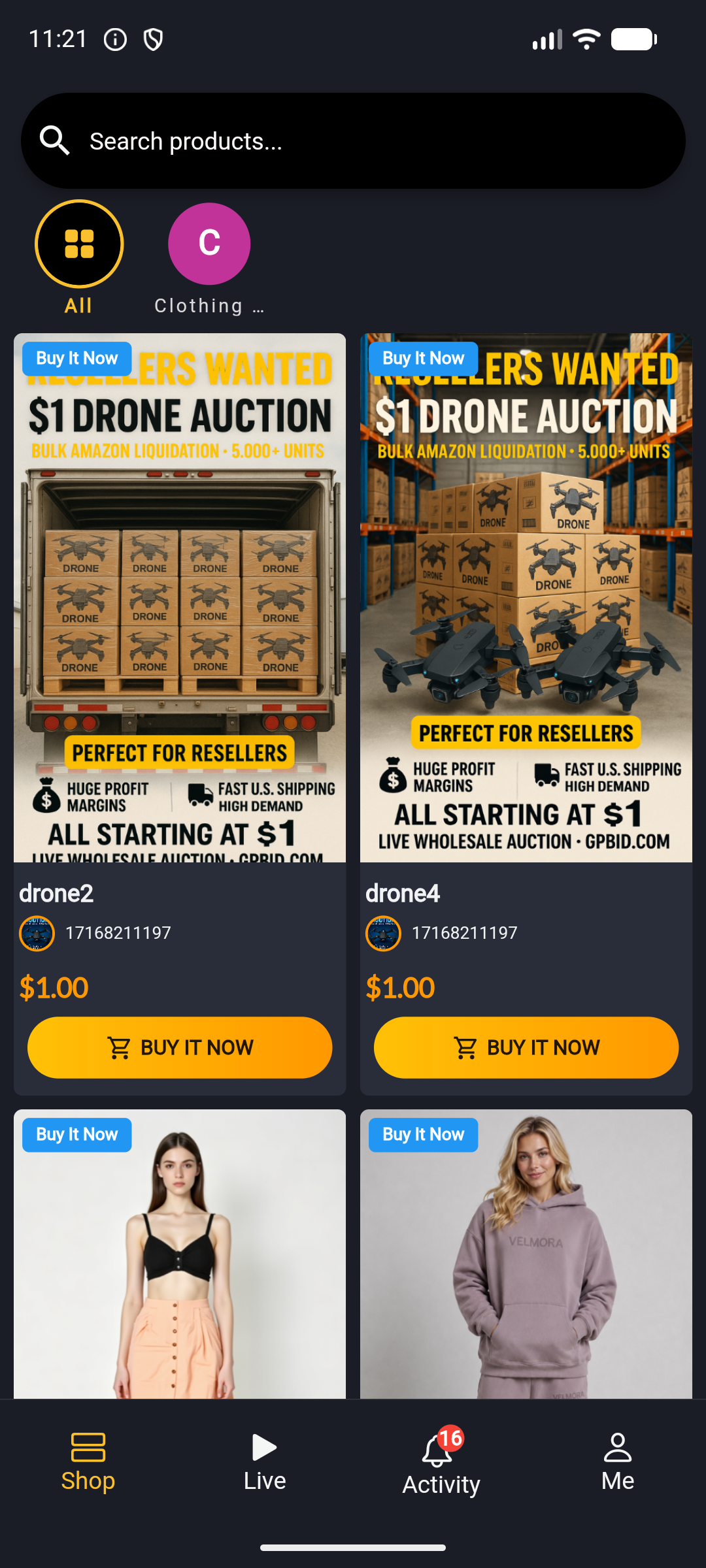
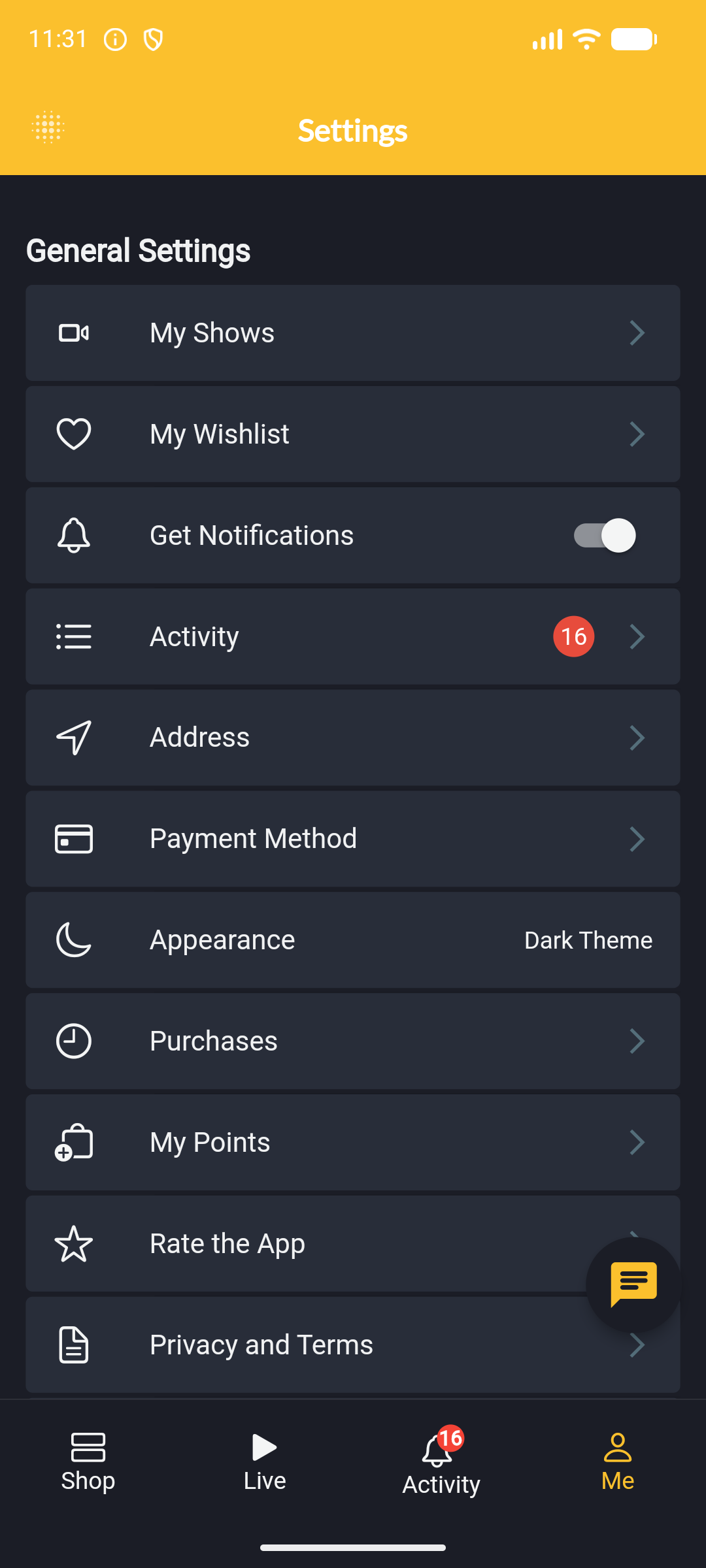
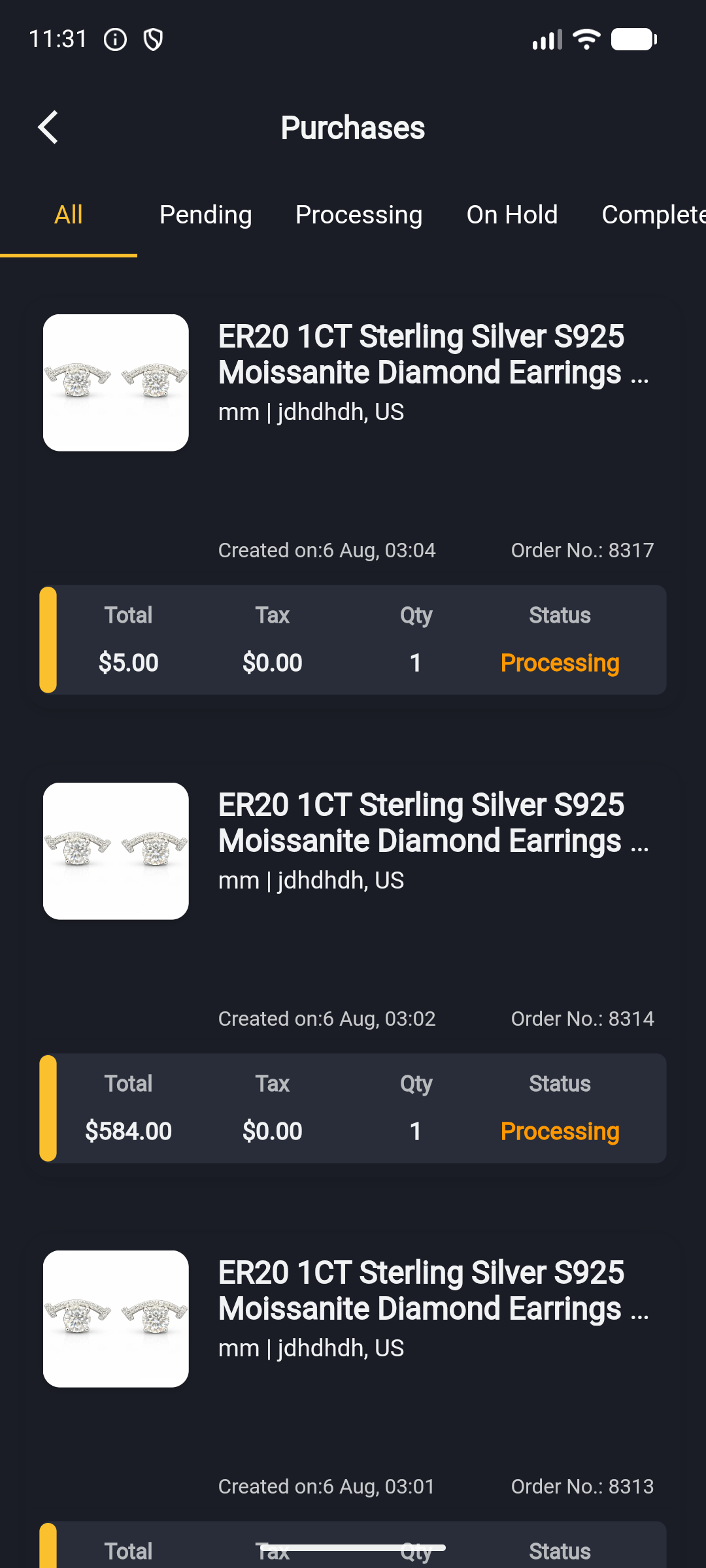
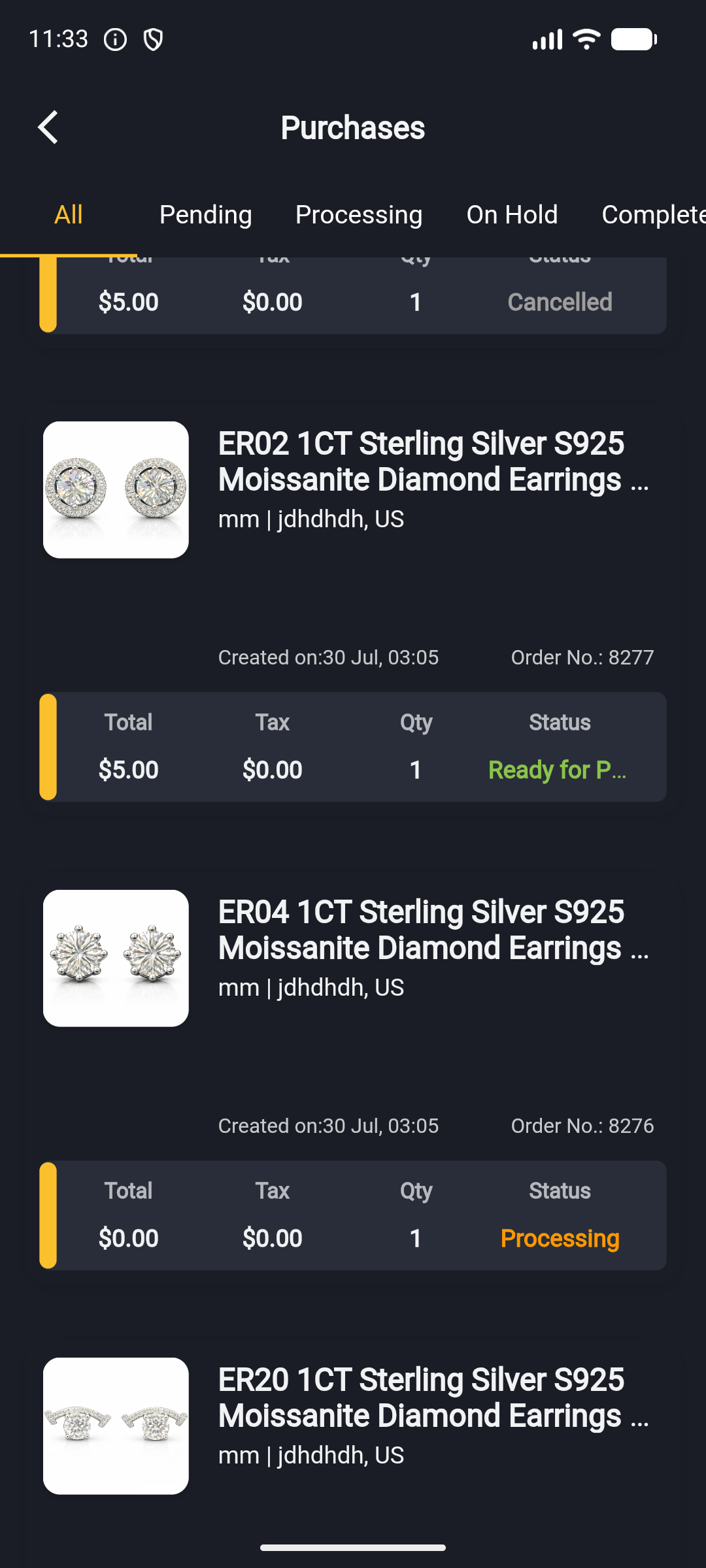
- Open Me → Purchases → your order. Wait until status is Ready for Pickup.
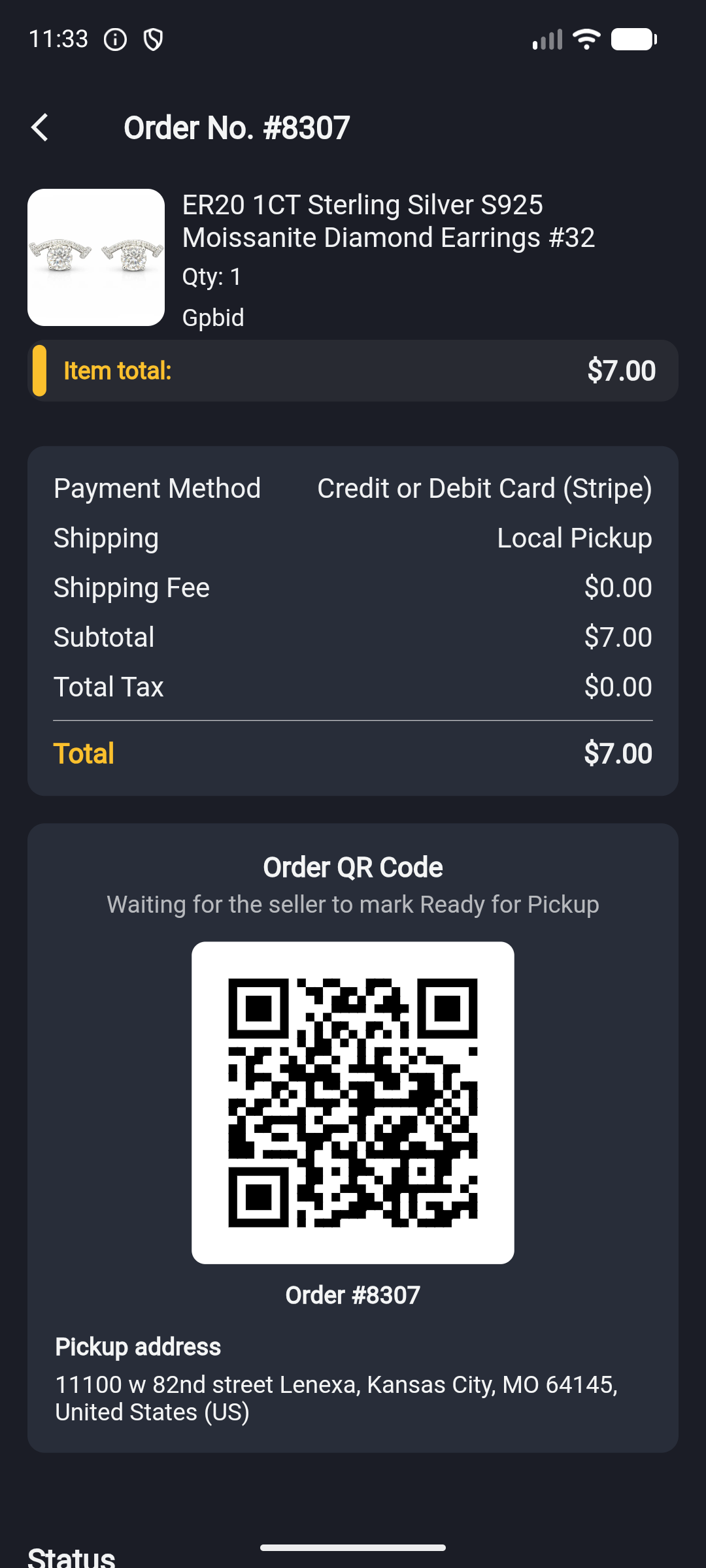
- At pickup, open the order and show your Order QR Code so the seller can scan it. Pickup address is on the same screen.
You can choose delivery options on the website; showing the QR code and completing handoff happens mainly in the App.
Video narration may be in Chinese; the steps above are in English.
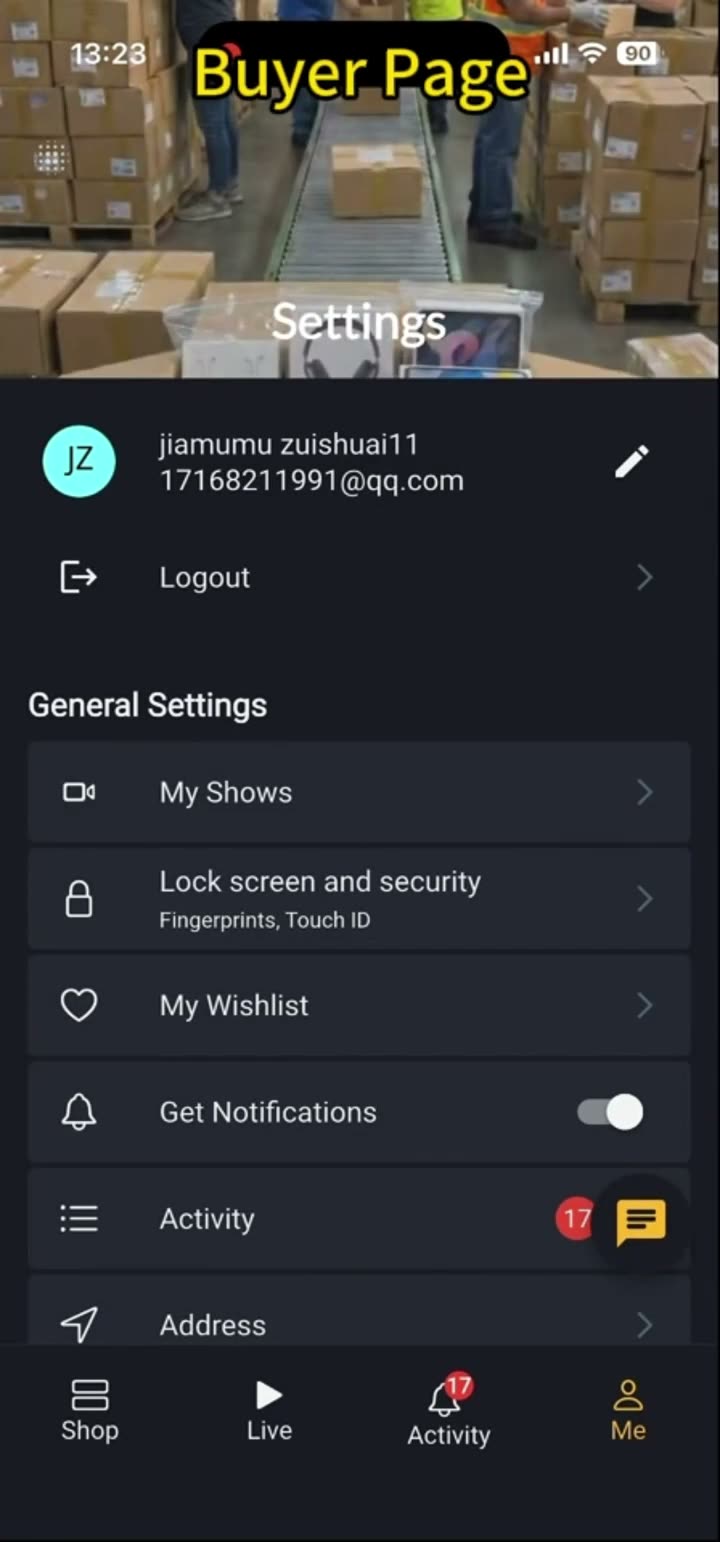
Step-by-step: joining a live show / orders & pickup (with screenshots)
Prefer video? Open How does Local Pickup work? above for the full walkthrough.
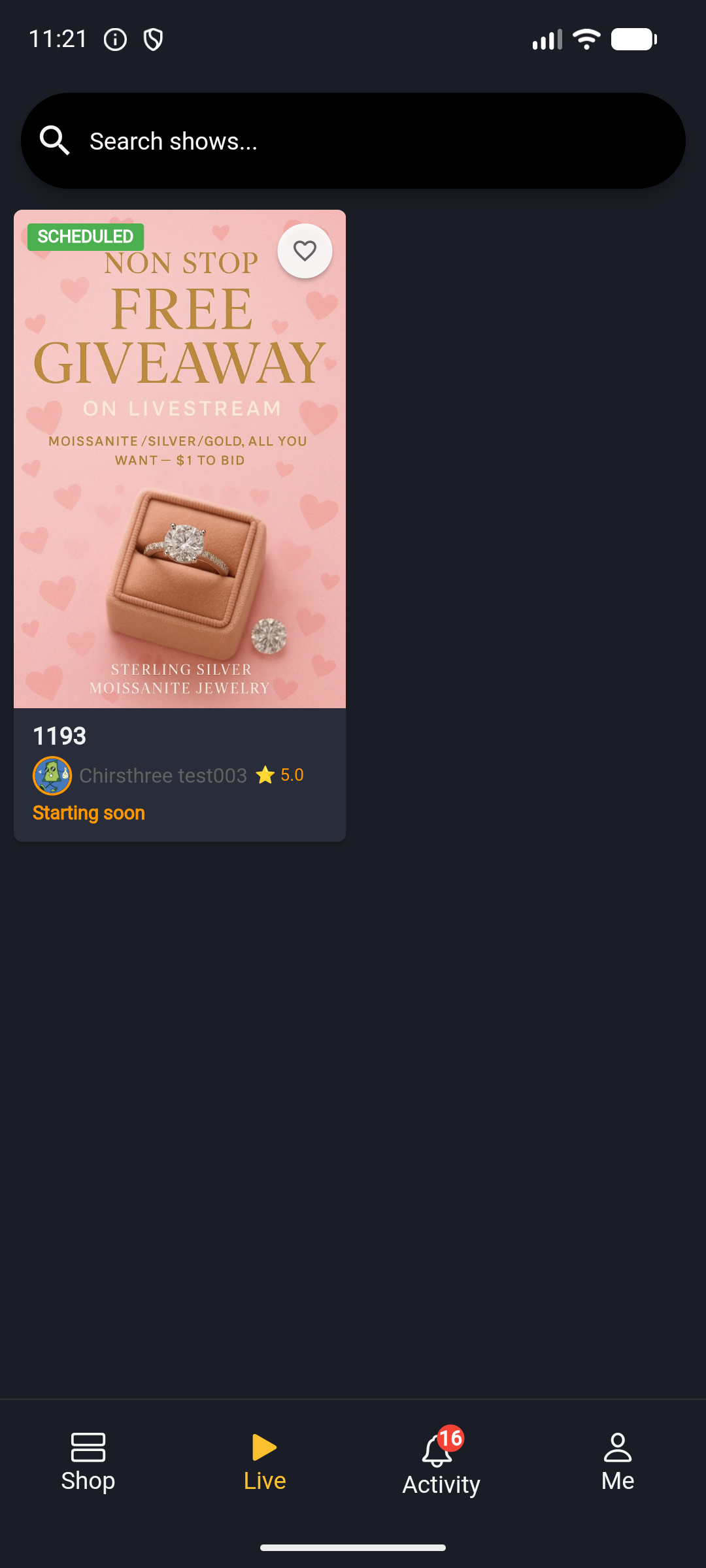
Join a live show
- Web: open a show from the Live list.
- App: tap Live in the bottom tab, then tap a show card.
Pickup screens
App: Me → Purchases entryApp: Purchases order listApp: Ready for Pickup statusApp: Order details — Order QR Code and pickup address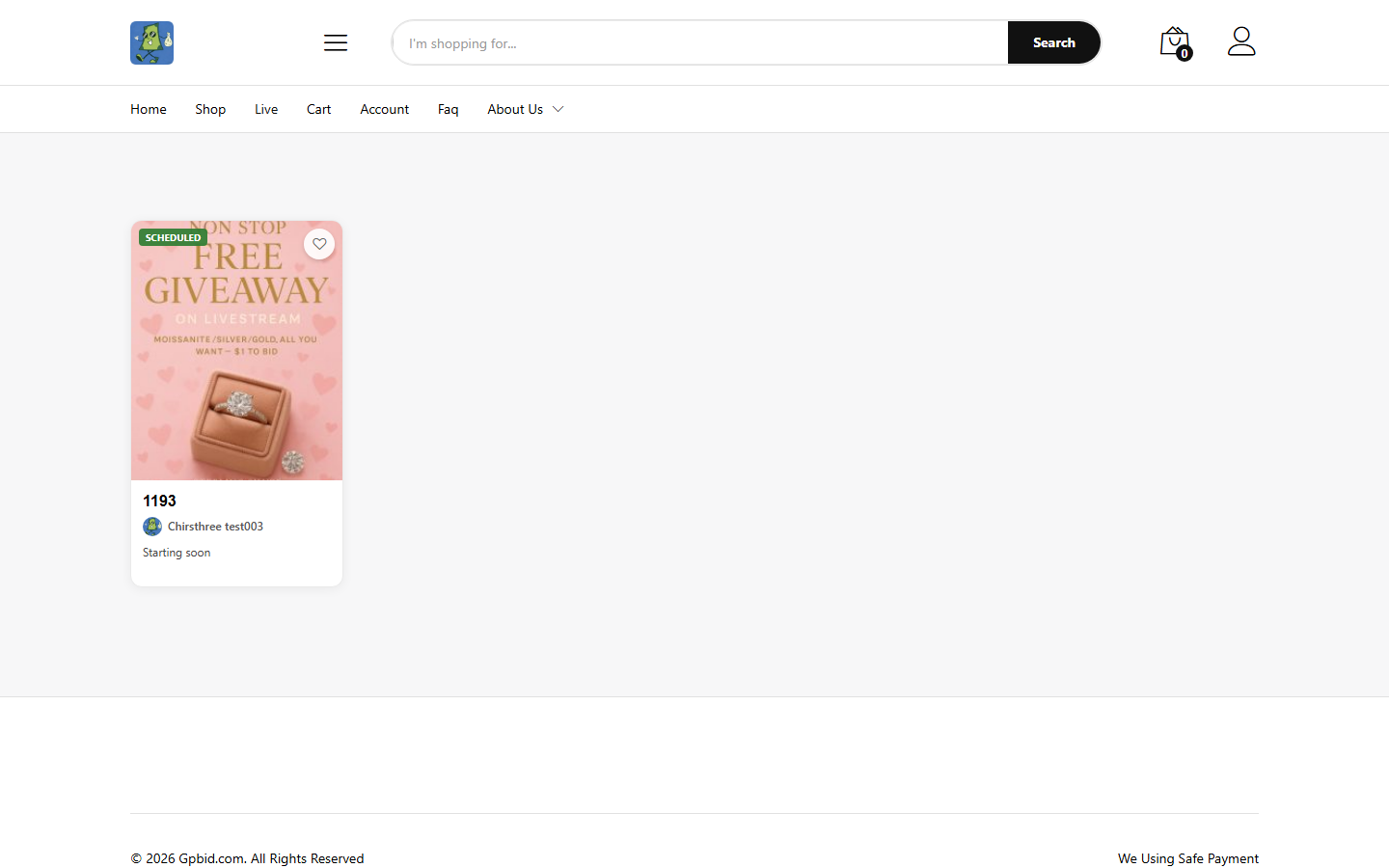
Sellers
How do I apply to become a seller?
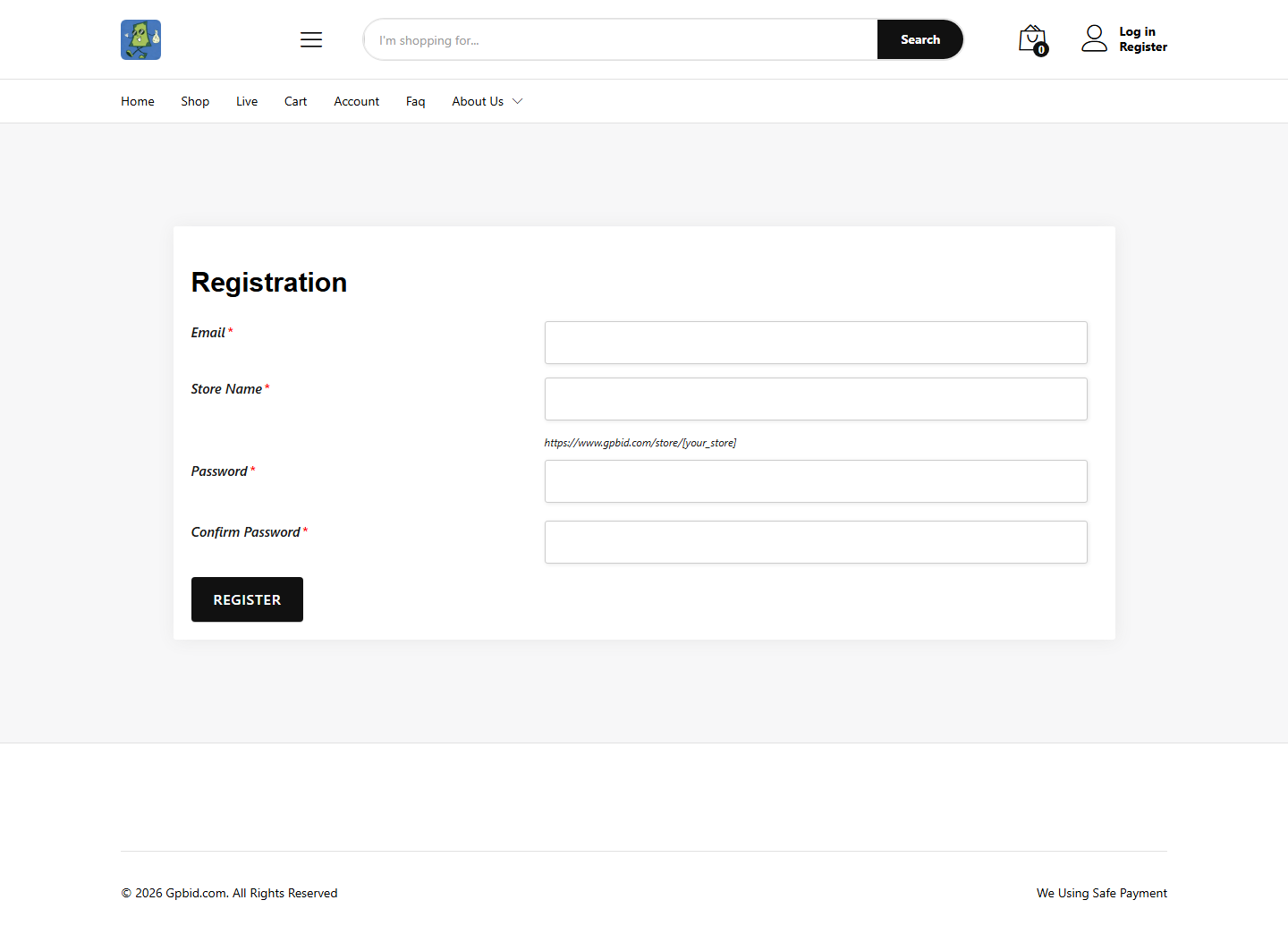
On the web, open Vendor Registration, or sign up in the App as a Vendor. Then go to Store Manager, finish your store profile, and complete Stripe Verification. Wait for approval before you sell.
What do I need before I can start selling?
1) An approved seller account; 2) a complete store profile (including address); 3) Stripe payout verification; 4) at least one sellable product. You should also be ready to ship or offer Local Pickup.
What can I sell?
Physical retail goods such as jewelry, apparel, accessories, and home items. List products in Store Manager / App My Products, then attach them to a live show. Sales must follow U.S. laws and our prohibited-items rules.
What's prohibited or restricted?
Prohibited or tightly restricted: counterfeits and IP infringement, weapons and ammunition, illegal drugs, tobacco and certain nicotine products, adult sexual content, live animals, hazardous/flammable chemicals, unauthorized prescription drugs, and recalled or otherwise illegally resaleable goods. If you’re unsure, email support@gpbid.com before listing.
How soon can I host my first live show after applying?
Once you’re approved and Stripe plus your store profile are done, many sellers can create a show and go live the same day. With complete paperwork, most sellers can start within one business day.
How do I create a live auction show?
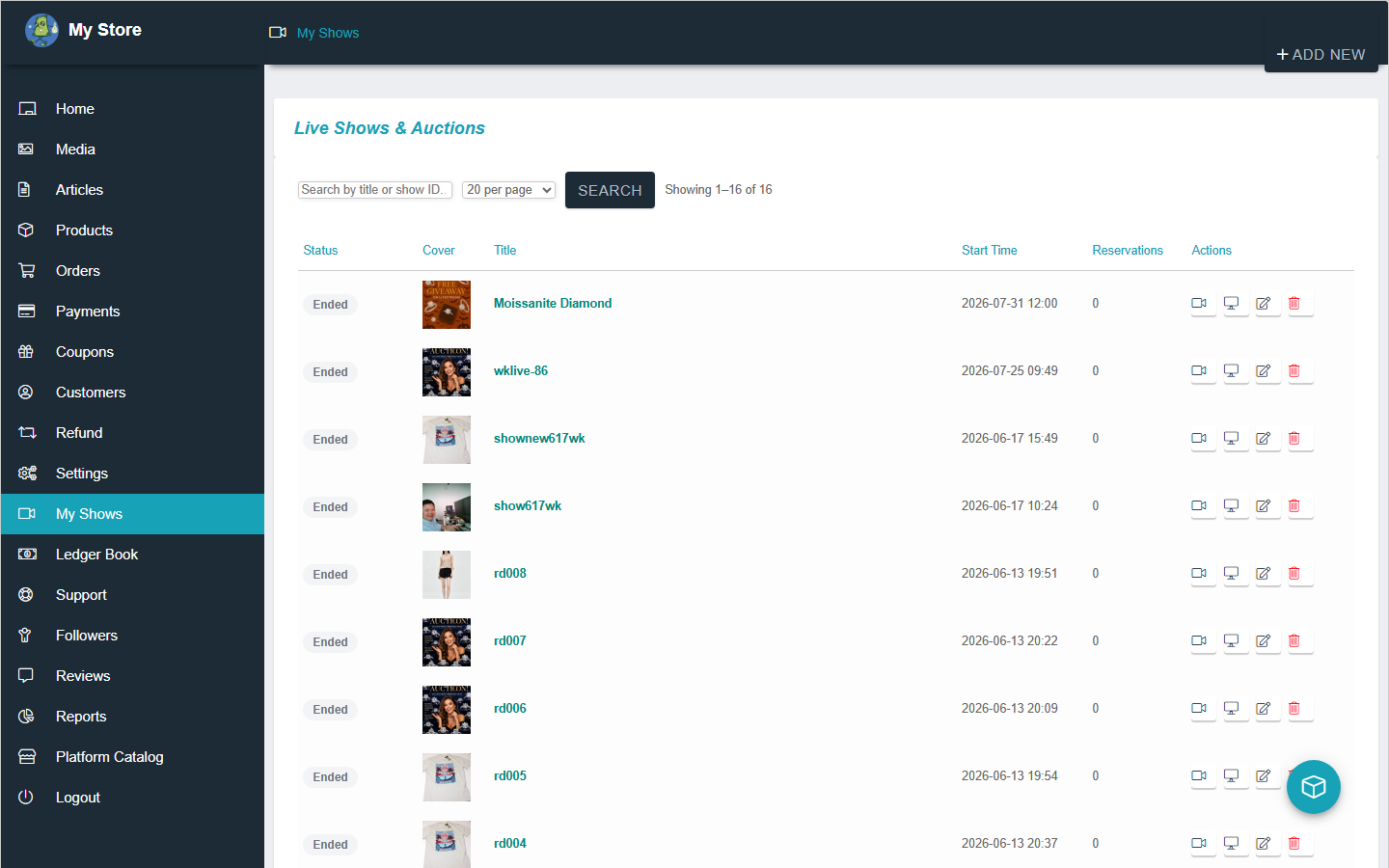
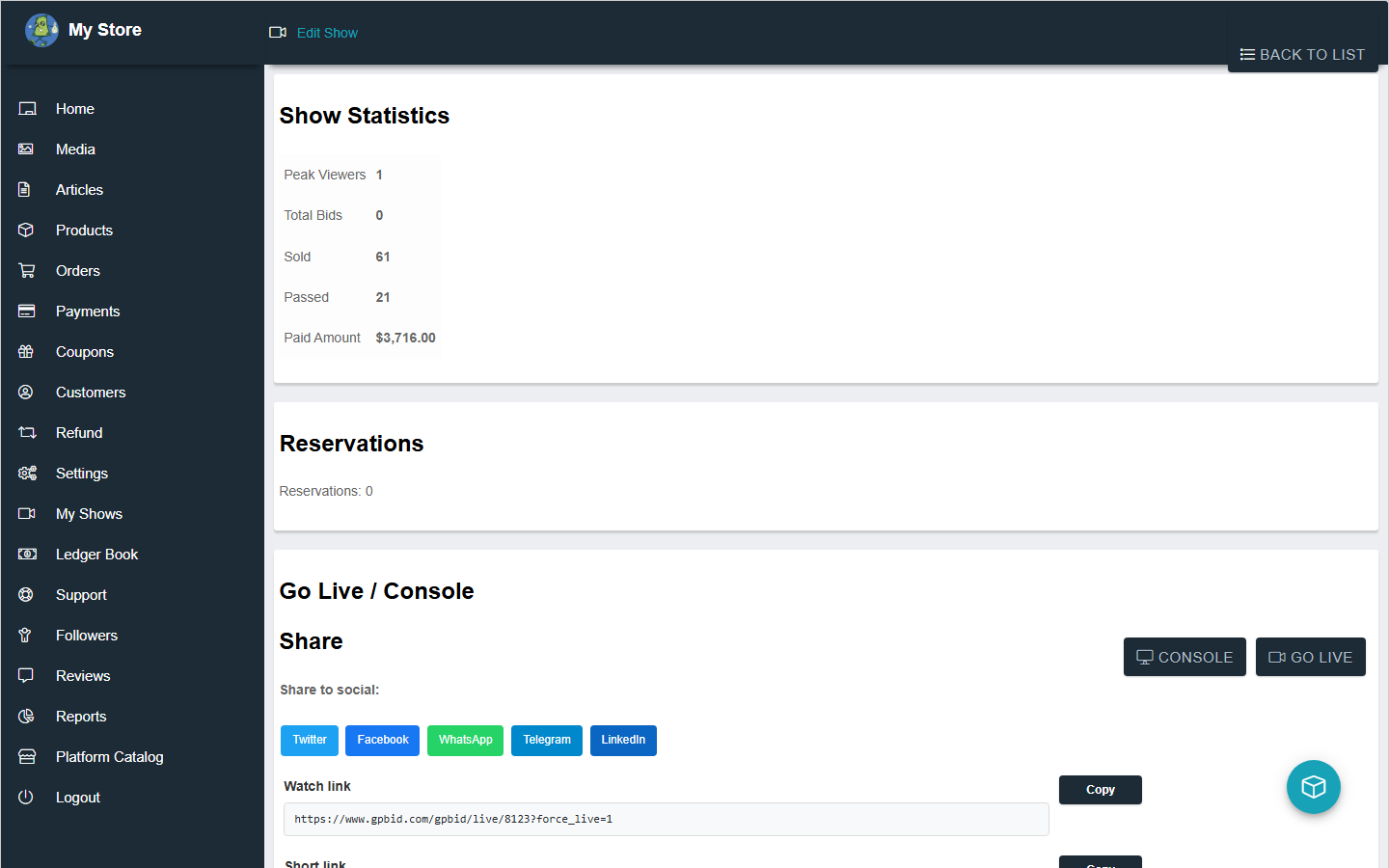
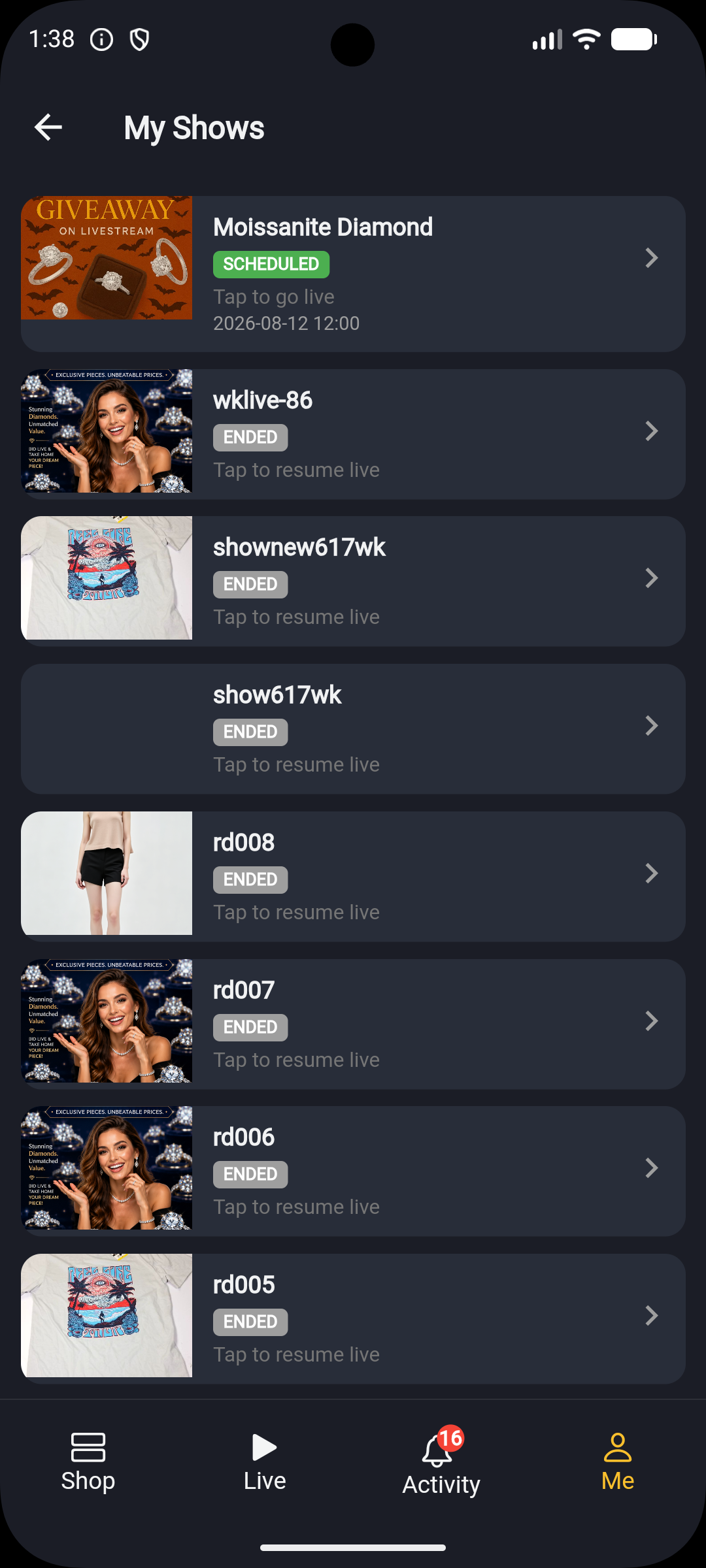
On the web: Store Manager → My Shows → Add New Show. Go live from the App: Me → My Shows → Go Live (Host). Run the auction and controls from the web Console.
How do I create a show and attach products? (video)
Watch the walkthrough
Seller web: create a show in My Shows, then attach products with Select Show Tap play · works best on mobile data / Wi‑Fi- On the web, open Store Manager → My Shows → Add New Show.
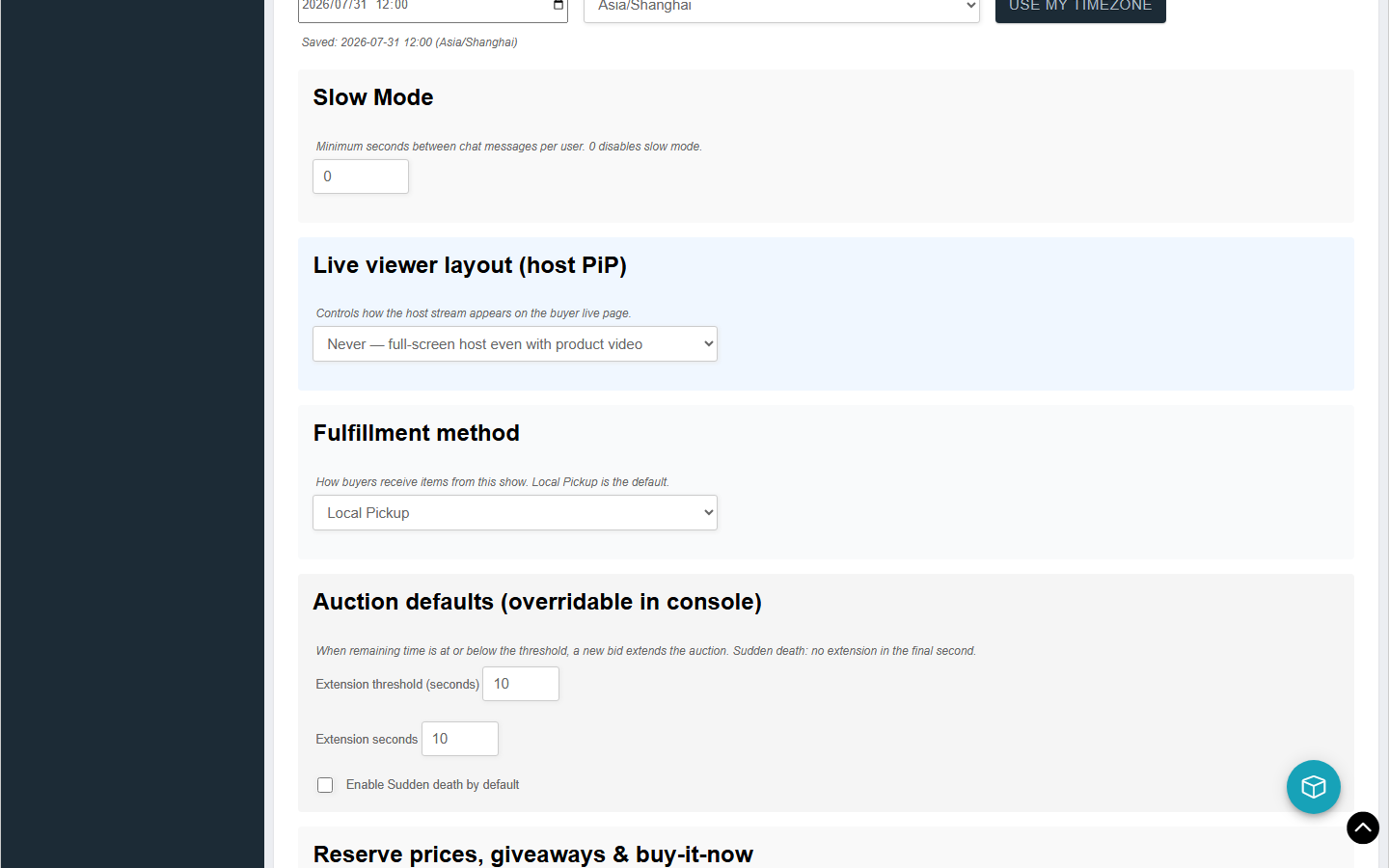
- Enter title / description, set a cover, and choose fulfillment (Shipping / Local Pickup).
- Save the show, then go to Products → Select Show and attach the items for that room.
- Open the web Console for that show to run auctions; stream from the App (see the Go Live video below).
Video narration may be in Chinese; the steps above are in English.
How do I add products to a live show?
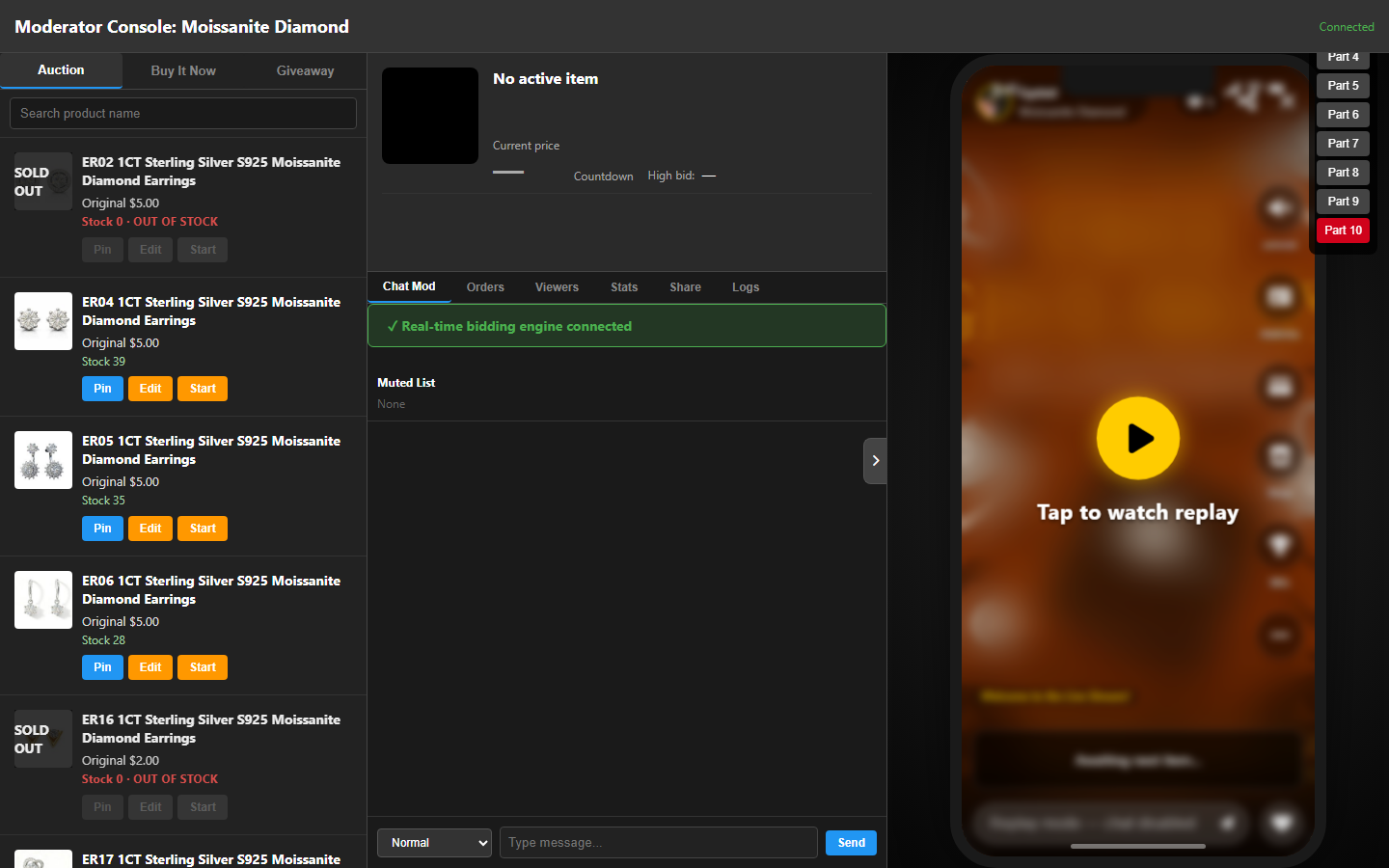
List the products first, then attach them as Auction / Buy It Now / Giveaway while editing the show. During the stream, Pin or Start items from the left side of Console. See also the create-show video above.
How do I go live from the App? (video)
Watch the walkthrough
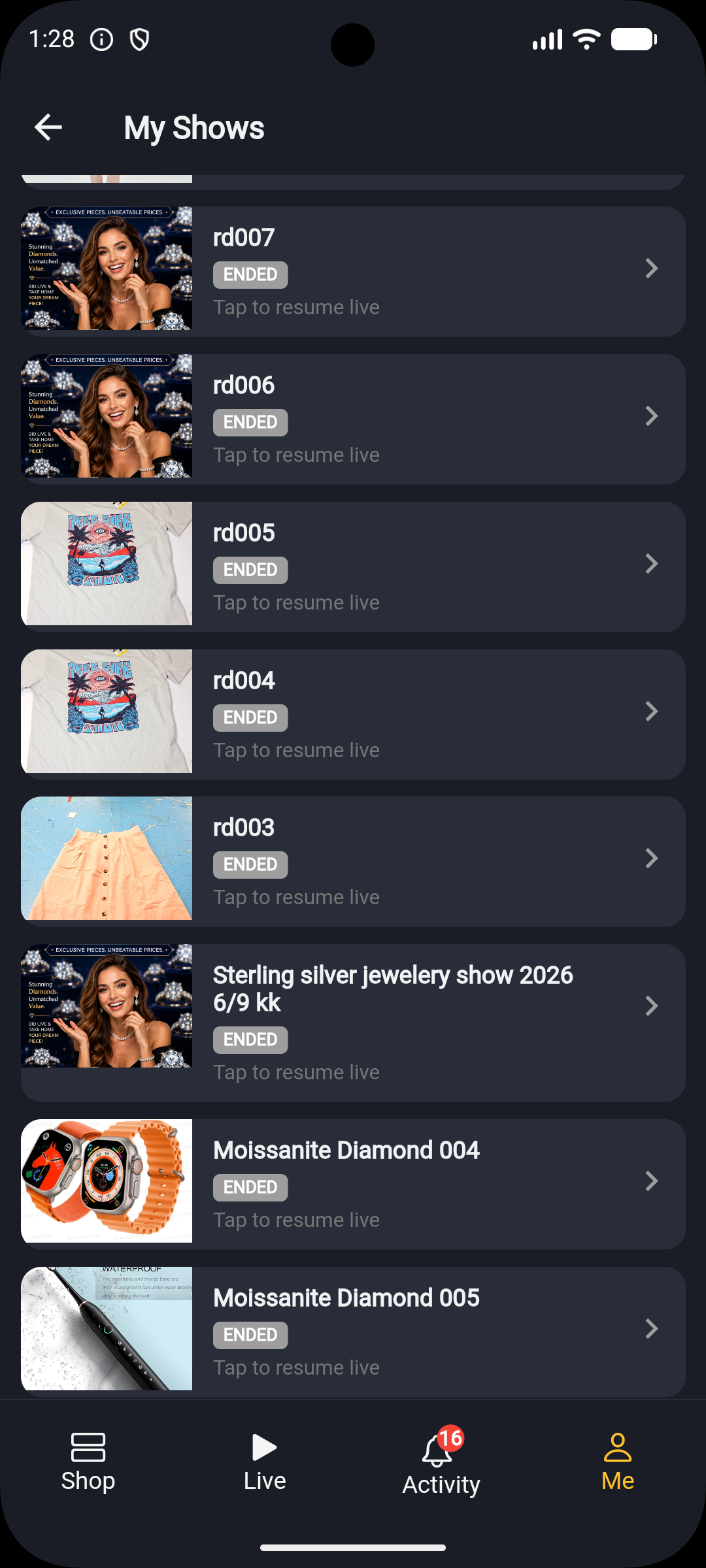
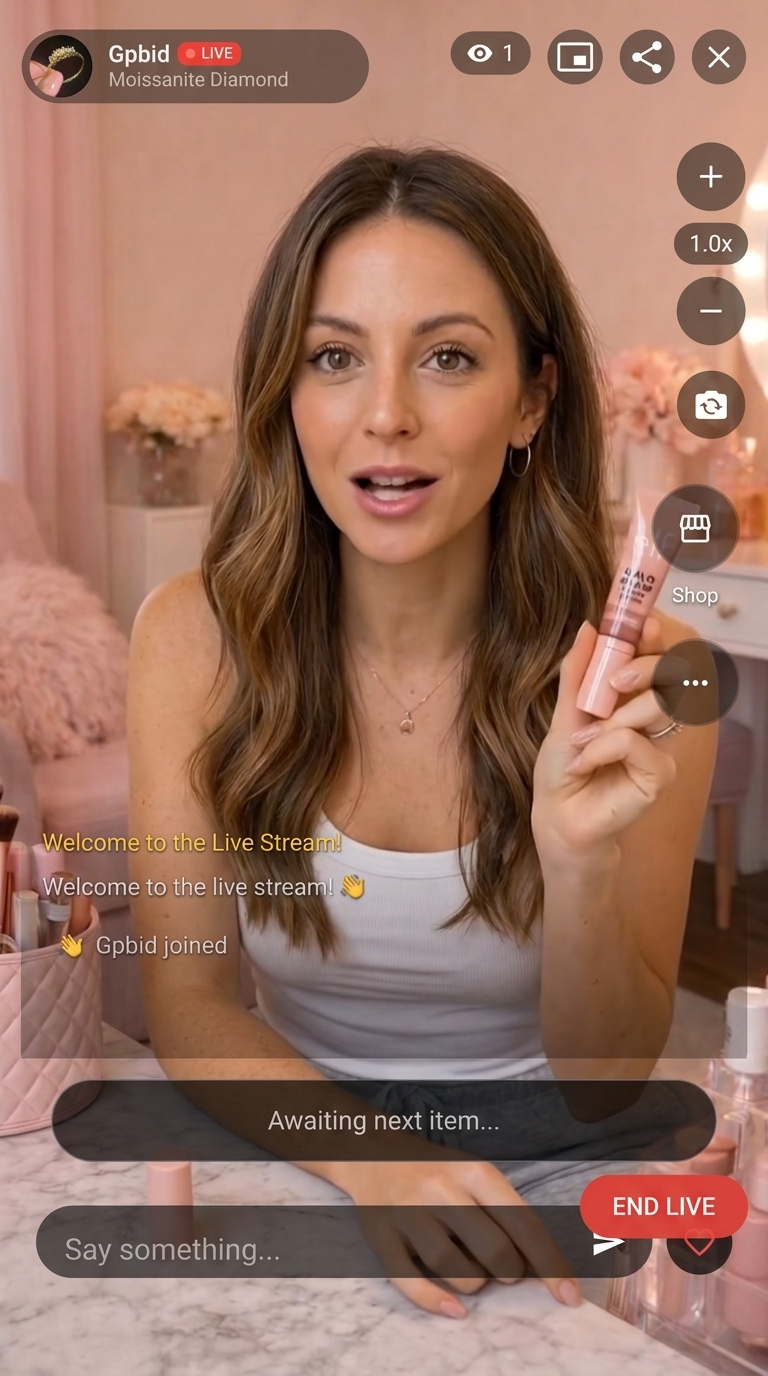
Seller App: Me → My Shows → GO LIVE → END LIVE Tap play · works best on mobile data / Wi‑Fi- Log in with your seller account in the App.
- Go to Me → My Shows.
- Tap a show marked LIVE (or the one you’re hosting) → Continue broadcasting / Go Live.
- Confirm camera & microphone → tap GO LIVE.
- When finished, tap END LIVE.
Run the auction from the web Console while you stream on the phone. We don’t recommend streaming from the website.
Video narration may be in Chinese; the steps above are in English.
How do I set a starting bid?
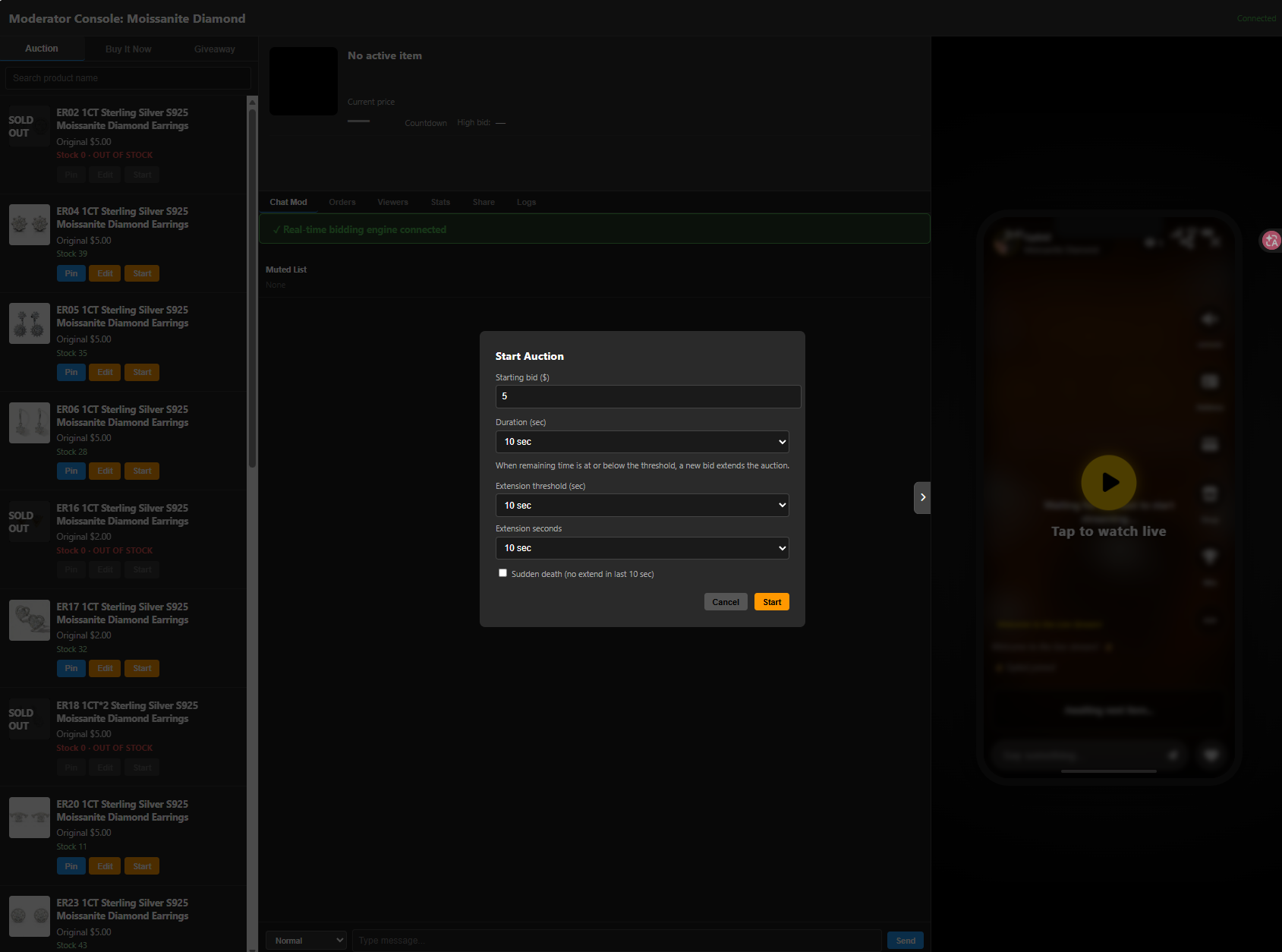
In Console, tap Start on an item and enter the Starting bid ($) in the Start Auction dialog.
Can I start at $1?
Yes. You choose the starting bid—just make sure the price still works with your margins and shipping.
Can I set a Reserve Price?
Not as a separate feature in the current version. Use the starting bid instead, or re-run the item later if it doesn’t sell.
What if nobody bids?
The item is marked Passed. You can Unpin it, move to Next Item, or Start it again later.
Can I auction a passed item again?
Yes. The same product can be started again in the current show or a later one.
Can I sell Buy It Now (fixed price) as well as auctions?
Yes. Switch to Buy It Now in Console and tap Start BIN.
How do buyers find my shows?
Through the Live list on the website and App, your store page, show reminders, and any live links you share.
How can new sellers get more viewers?
Keep a consistent schedule, use a clear cover and title, feature strong products, run occasional Giveaways, share to social, and offer fair shipping or Local Pickup.
Does the platform promote my shows?
Live entry points surface shows that are live or upcoming. Extra ranking boosts or paid promotion depend on current campaigns—we don’t guarantee a specific amount of exposure.
Can I bring followers from other social apps?
Yes—and we encourage it. Copy your short live link to TikTok, Instagram, Facebook, and more. Console also has a share entry point.
What does it cost to sell on GPBid?
Typically a platform commission on sales plus payment processing fees (Stripe). Opening a store and creating shows usually has no separate show fee (membership packages, if any, are announced separately).
What's the platform commission?
Working figure: 10% of the item sale amount (excluding buyer shipping, subject to your settlement settings).
Are there payment fees or other charges besides commission?
Yes. Card payments are typically about 2.9% + $0.30 per transaction. Refunds and chargebacks may add fees under the payment provider’s rules.
If an item sells for $100, what do I actually take home?
Example (item only at $100): about $10 commission + ~$3.20 processing → roughly $86.80. Your settlement statement is the source of truth.
Who pays for shipping—buyer or seller?
By default, buyers pay shipping at checkout. Local Pickup is $0 shipping. Sellers can also absorb shipping in their pricing.
Does the platform provide shipping labels?
Not as a built-in label service. Print labels with your own carrier account.
Can I combine multiple orders for the same buyer?
Shipping-combine logic applies to mail orders from the same buyer, same live show, and same seller. For cross-show orders, coordinate with the buyer yourself.
How quickly do I need to ship after a sale?
Aim to ship and mark Shipped within 3 business days of payment. For pickup orders, mark Ready for Pickup promptly and complete the scan handoff.
When do I get paid after a sale?
After funds clear through Stripe Connect, U.S. sellers can typically withdraw in about 2–7 business days (depends on your account and risk checks). Check Stripe / your seller dashboard for the exact timing.
How do I withdraw?
Finish Stripe Verification, then follow Payments / Stripe in your seller dashboard to transfer to your bank account.
What if a buyer wins but doesn't pay?
We try to charge automatically; if that fails, the order stays unpaid. After about 1 hour without payment it may auto-cancel, and the buyer may be blocked from bidding until they pay. You can auction the item again.
Can a buyer cancel after winning?
In general, no casual cancellations after a sale. Unpaid timeouts follow the rule above. Paid refunds follow the refund policy or support review.
If a buyer asks for a refund, opens a dispute, or files a chargeback, how are sellers protected?
Keep shipping, delivery/pickup proof, and message history. We can help provide order and fulfillment records; outcomes follow the user agreement and the payment provider’s decision.
Step-by-step: signup, create a show, go live, Console (with screenshots)
Signup & dashboard
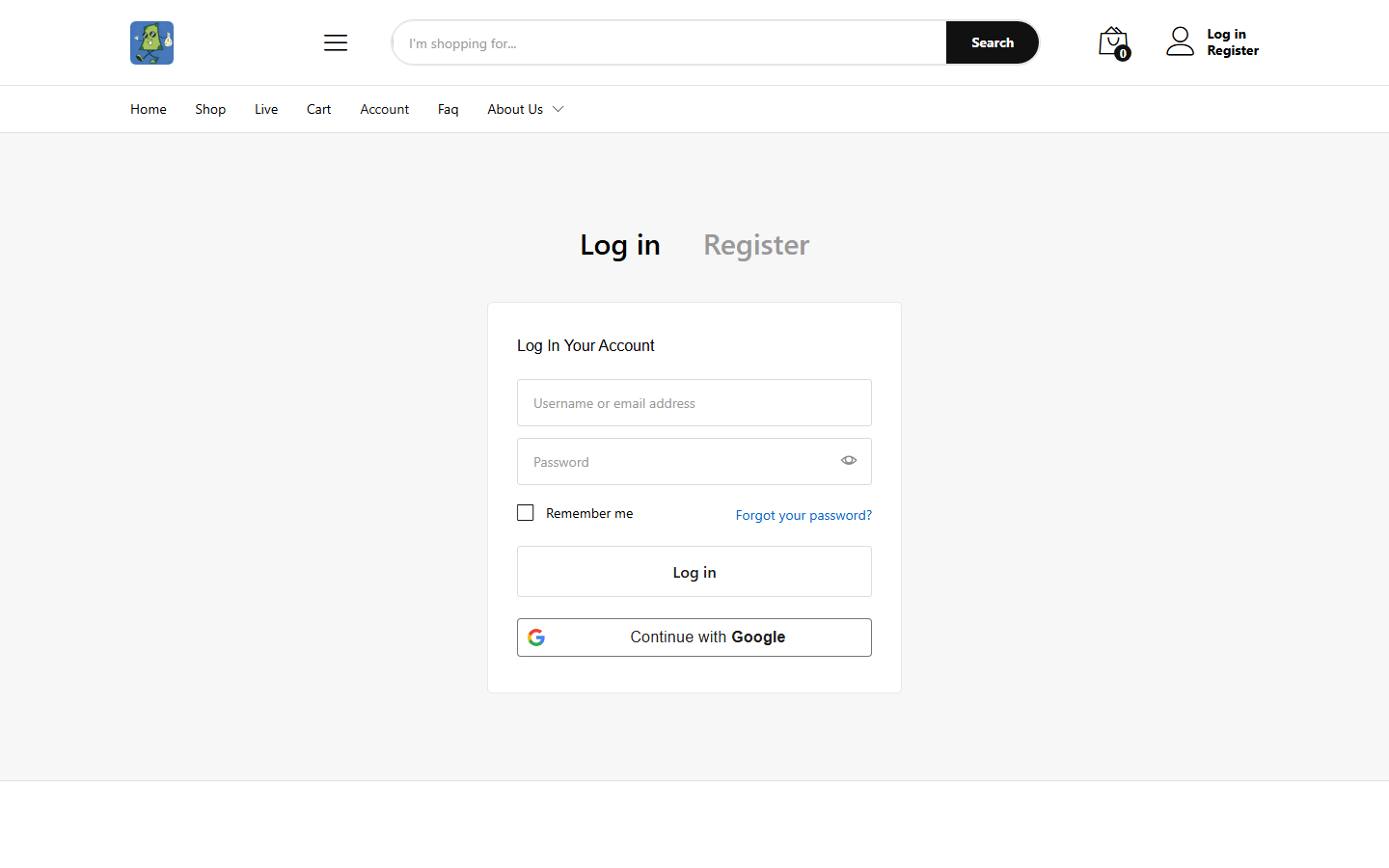
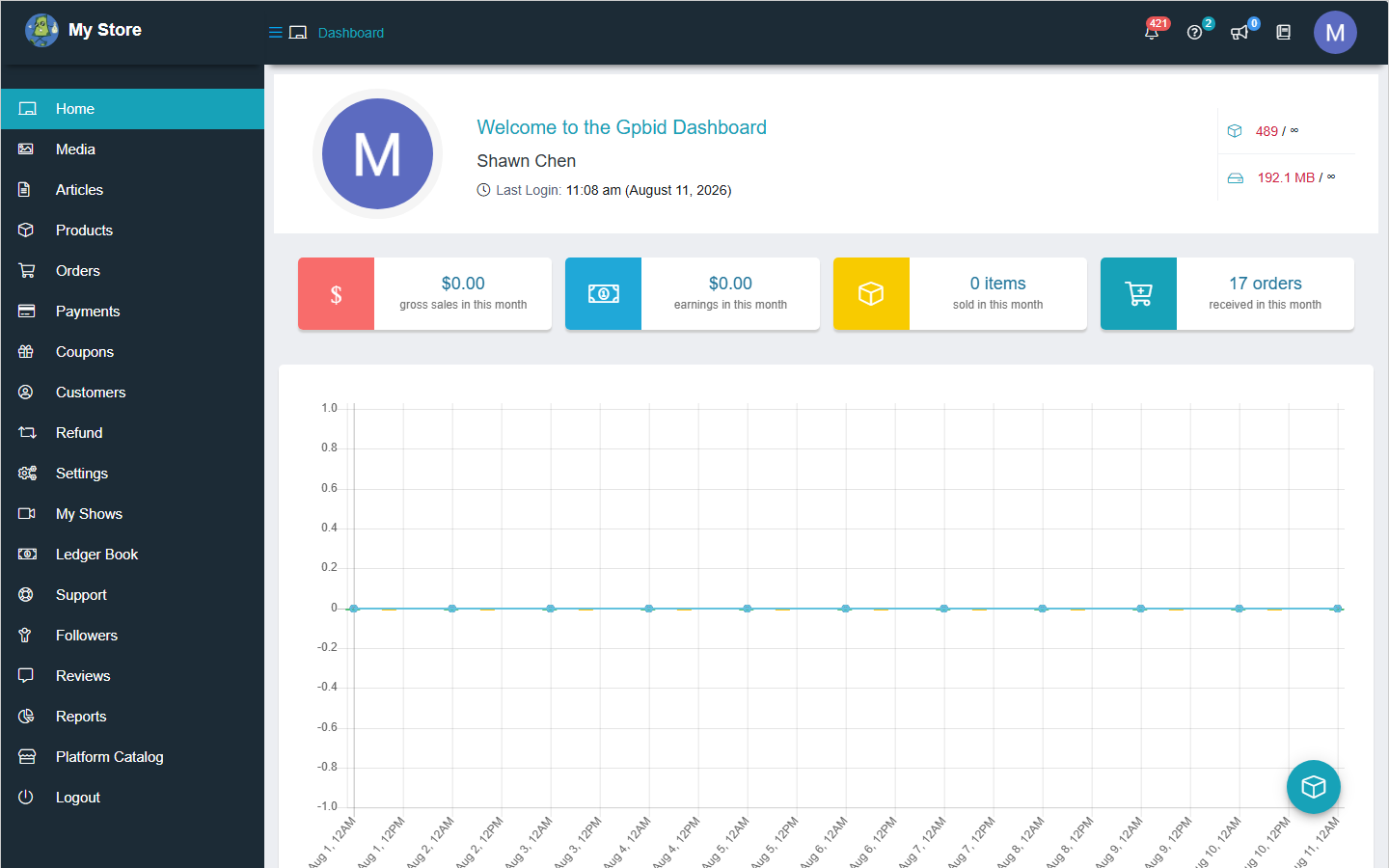
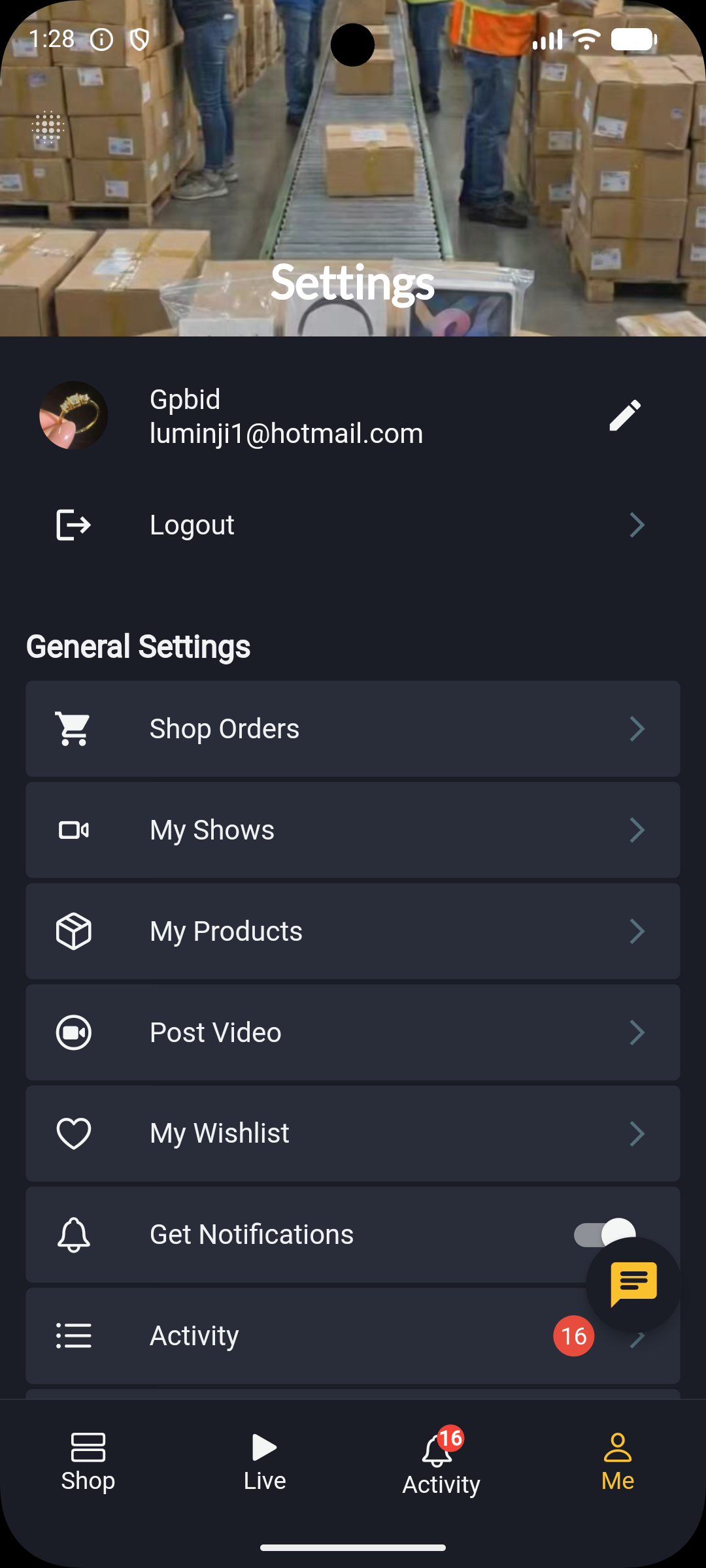
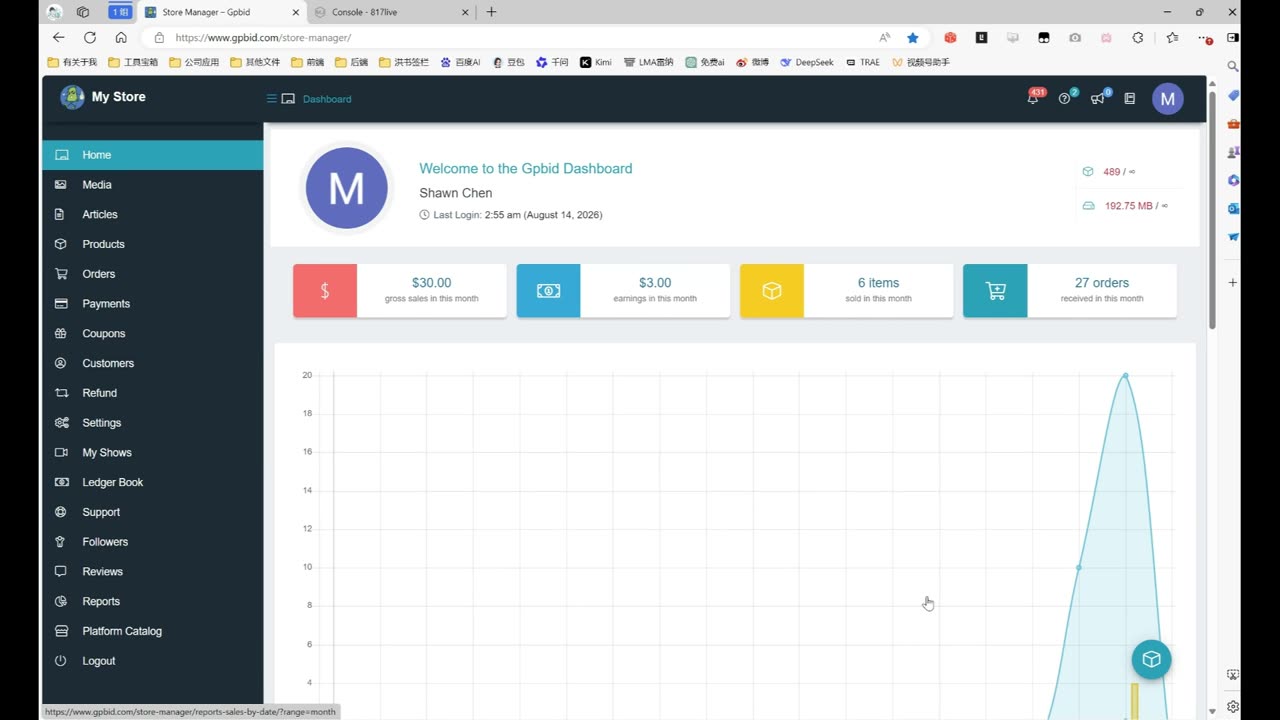
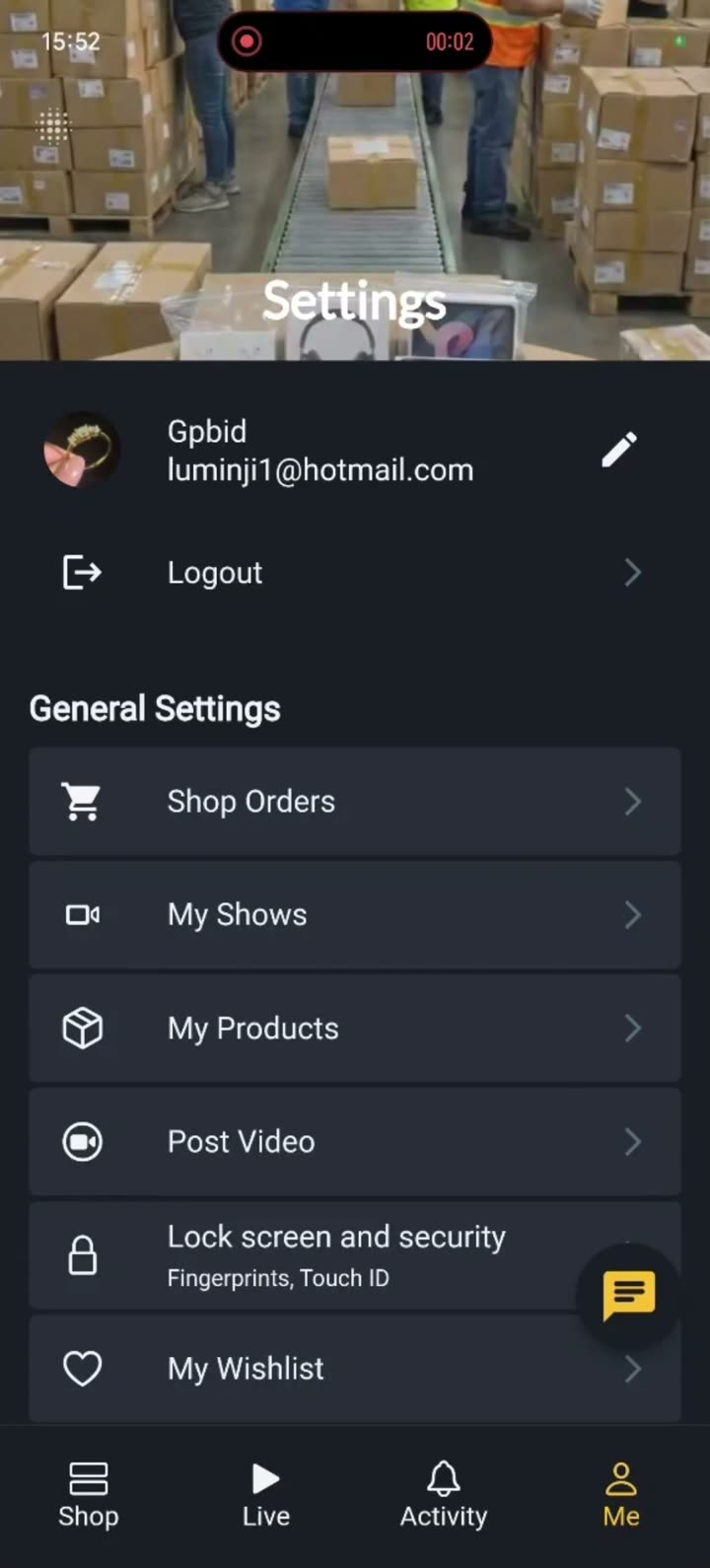
Web: Vendor registrationWeb: LoginWeb: Store ManagerApp: Seller Me / SettingsCreate a show & go live
Create the show on the web (My Shows) → stream from the App with Go Live (Host) → run the auction from the web Console. We don’t recommend streaming from the website.
Videos: Create a show and attach products · Go live from the App (expand those questions under Live auctions).
Web: My ShowsWeb: Fulfillment optionsWeb: Go Live / Console entry pointsApp: My Shows listApp: My Shows (including SCHEDULED)App: Go Live (Host)Console
Web: Moderator ConsoleWeb: Start Auction dialogStart Auction options: Starting bid; Duration (initial countdown); Extension threshold / Extension seconds (anti-snipe window and added time); Sudden death (no extensions in the last 10 seconds); Cancel / Start.
Product area: switch Auction / Buy It Now / Giveaway; Pin to stage; Edit; Start; SOLD OUT items can’t be started again.
Quick map: create shows and run Console on the web; stream from the App; pickup QR handoff is in the App.